
Choose a target and edit automatically
First choose an effect, then use the AI menu to select what you want to apply it to.
1Choose mosaic or blur
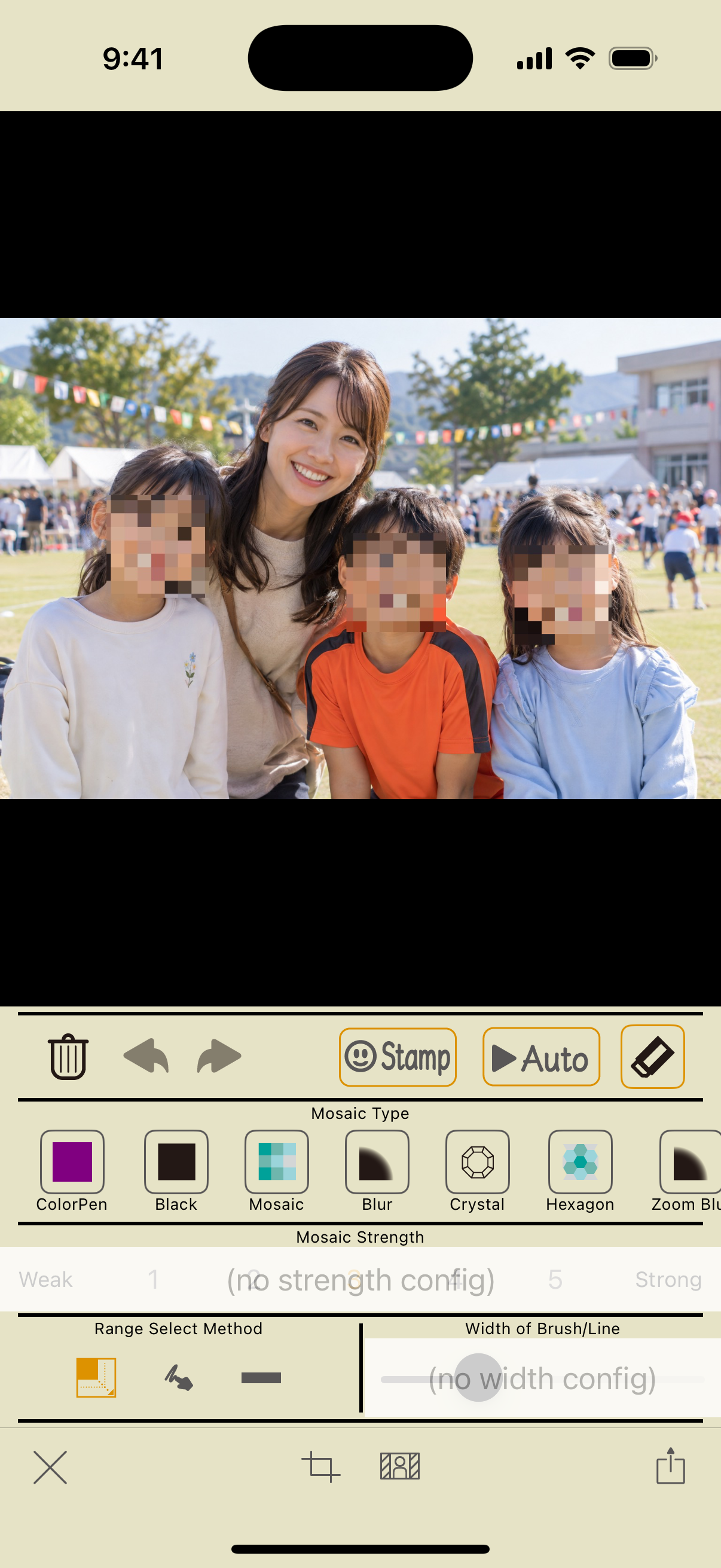
Choose an effect under “Mosaic Type.” For supported effects, select a strength from 1 to 5.
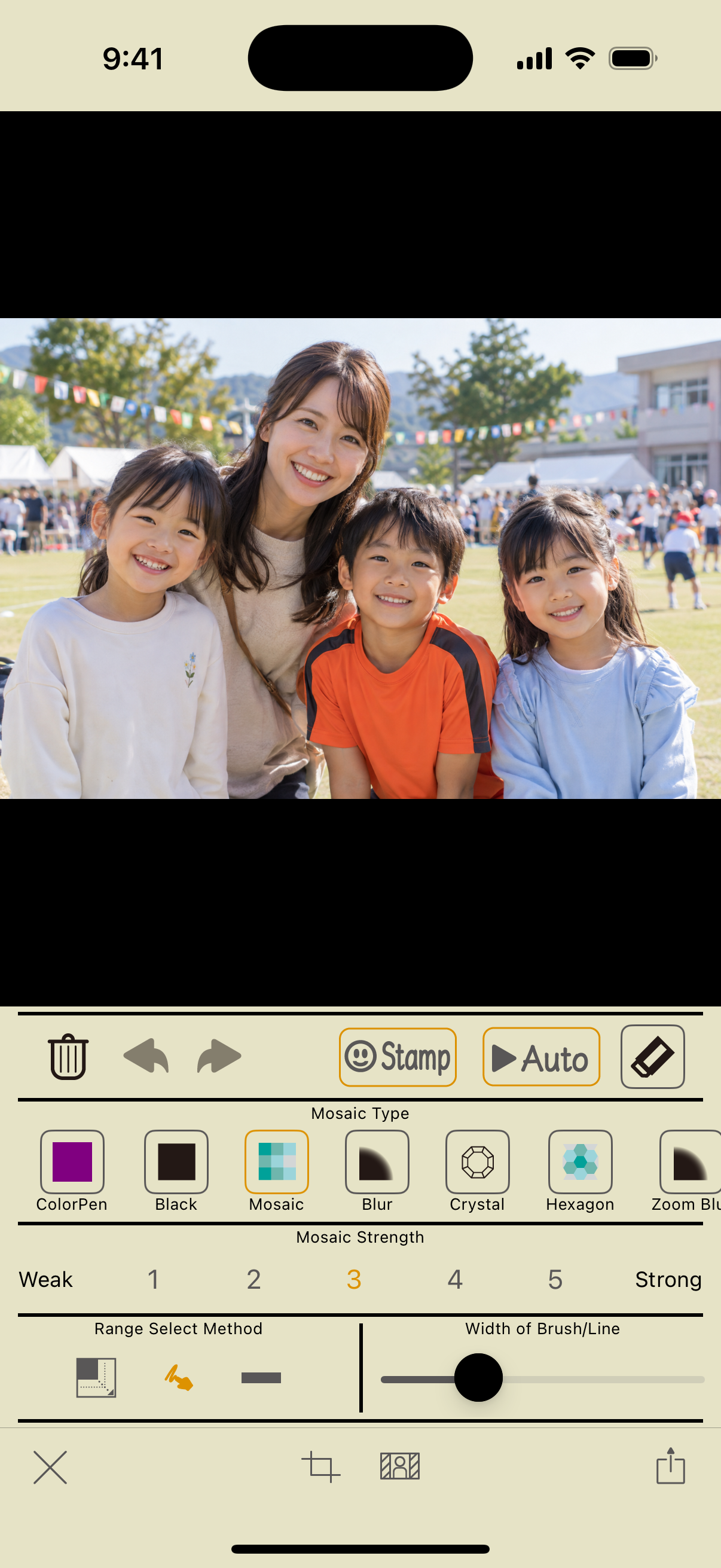
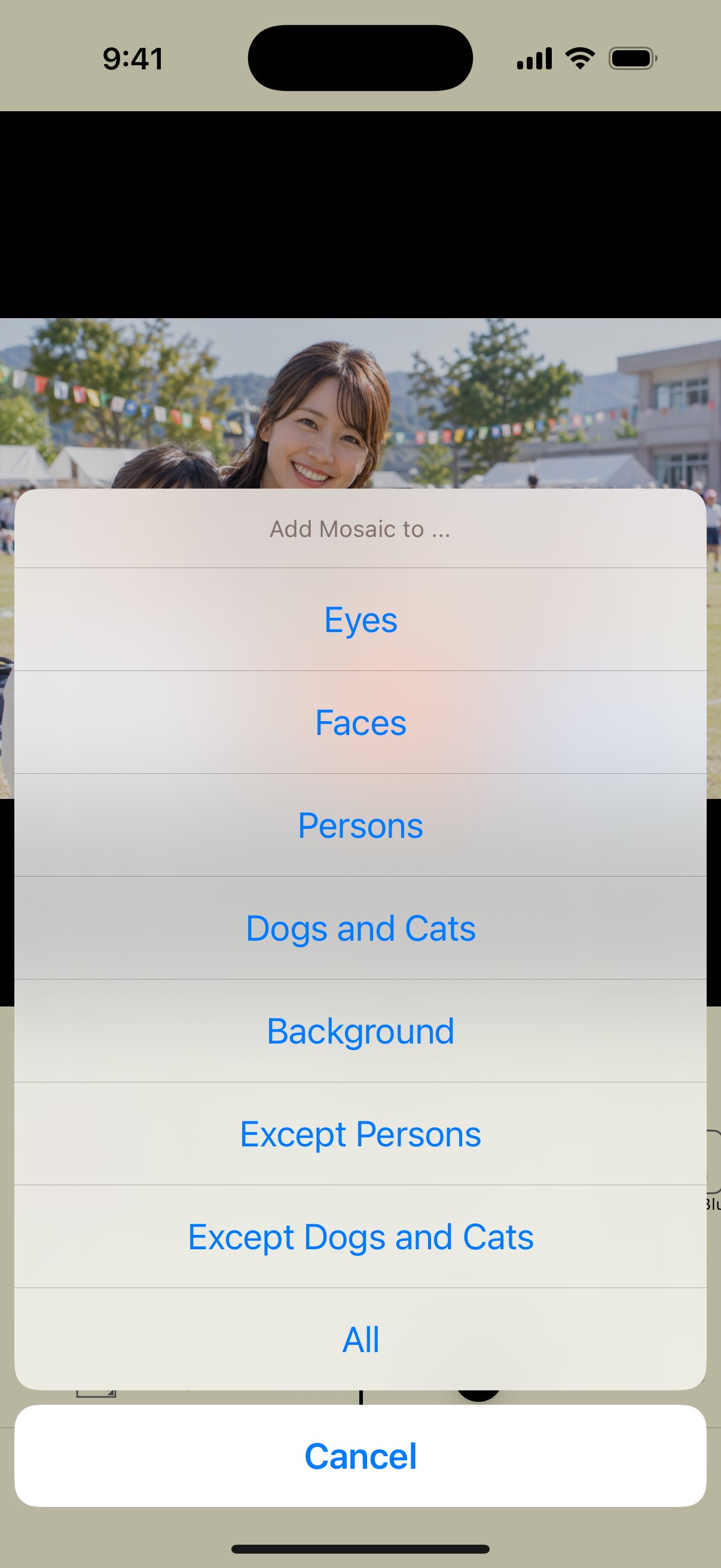
2Open Auto and choose a target
Tap “Auto” in the editor, then choose Faces, Eyes, Persons, or another target. The selected effect is applied to detected areas.
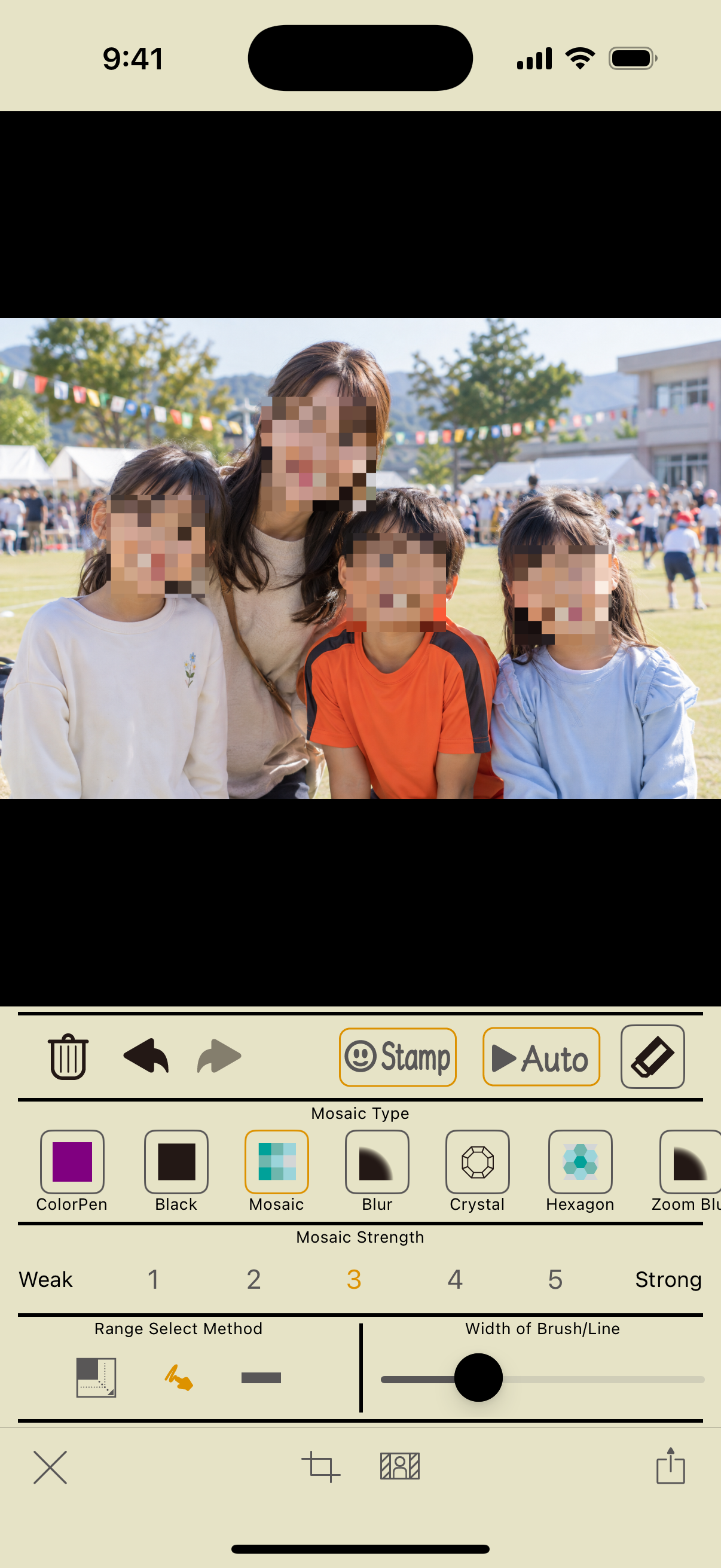
3Check the result
The app applies the effect to detected faces. Small, side-facing, or partly hidden faces may be missed. Zoom in and cover anything missed manually.
Choosing a target
| Target | Area edited |
|---|---|
| Eyes | Adds a covering line across the eye area of detected faces |
| Faces | The area of detected faces |
| Persons | Areas recognized as people |
| Dogs and Cats | Areas recognized as dogs or cats |
| Background | Areas recognized as background |
| Except Persons | Keeps people and edits everything else |
| Except Dogs and Cats | Keeps dogs and cats and edits everything else |
| All | The whole photo |
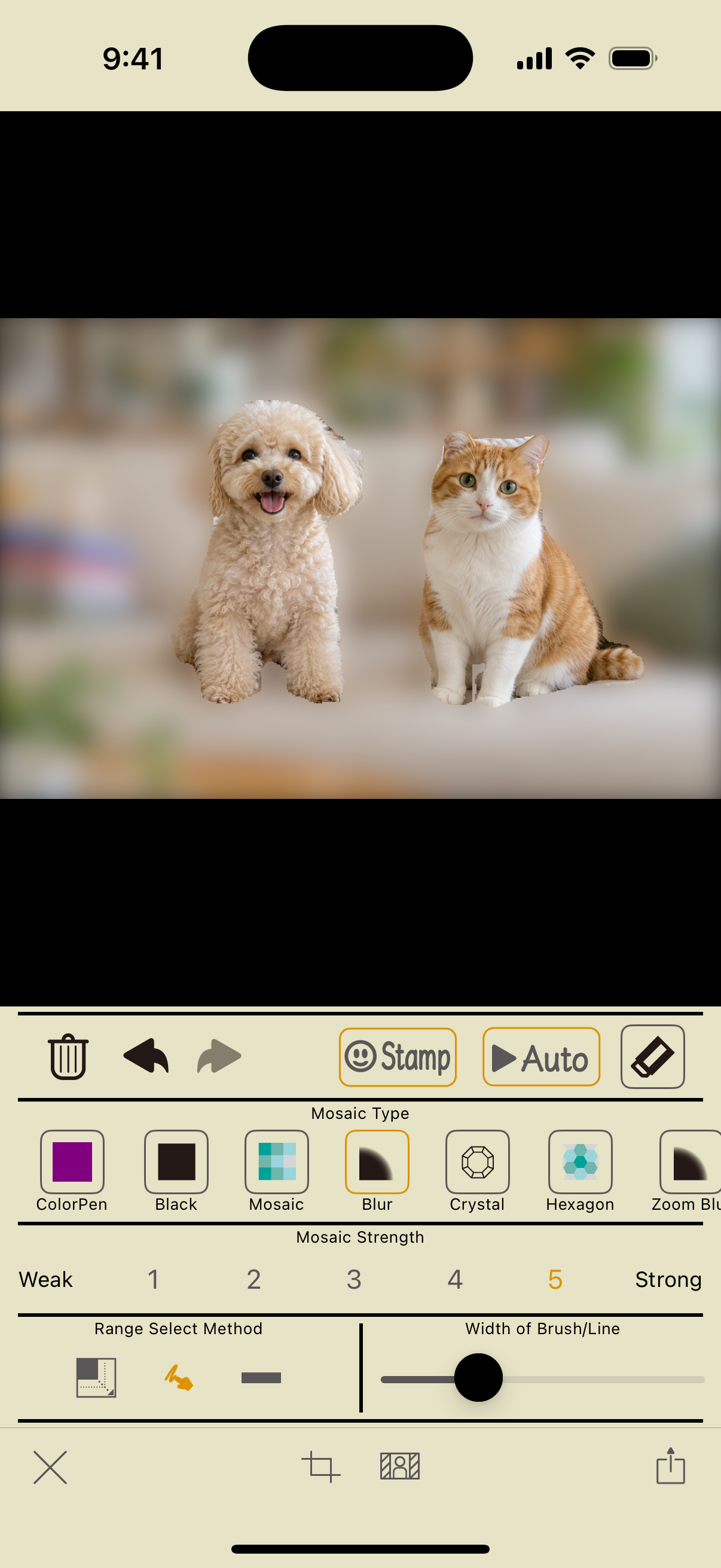
Choose “Except Dogs and Cats.” This is different from “Background.” Check the edges of the fur and anything visible around the pet.
Restore areas you want to keep and fix missed spots
Select the eraser and draw to restore an area to the original image for the current edit. Use the brush or rectangle tool to cover areas that need more editing.
Optional: edit text automatically
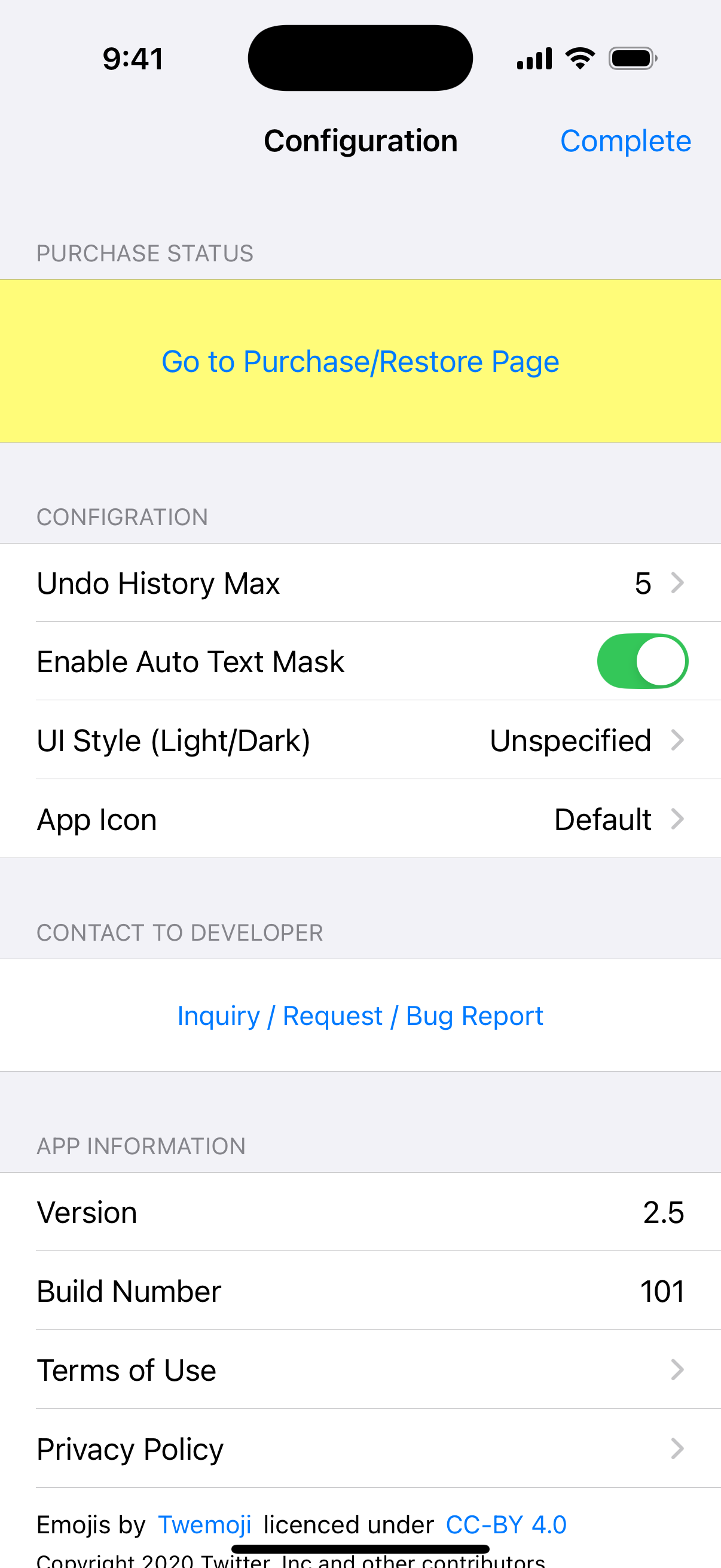
Open “Configuration” from the start screen or editor and turn on “Enable Auto Text Mask.” “Text” will then appear in the AI menu.
This tool detects text areas. It does not understand which names, addresses, or phone numbers should be hidden. Select and check any necessary areas manually as well.
Screenshots: app 2.5 on iOS 18.2. Steps checked on October 11, 2026. Appearance may vary with the app or OS version.