
Edit your first photo
Choose a photo and an effect, then edit the areas you want to hide. Start by drawing manually with the brush.
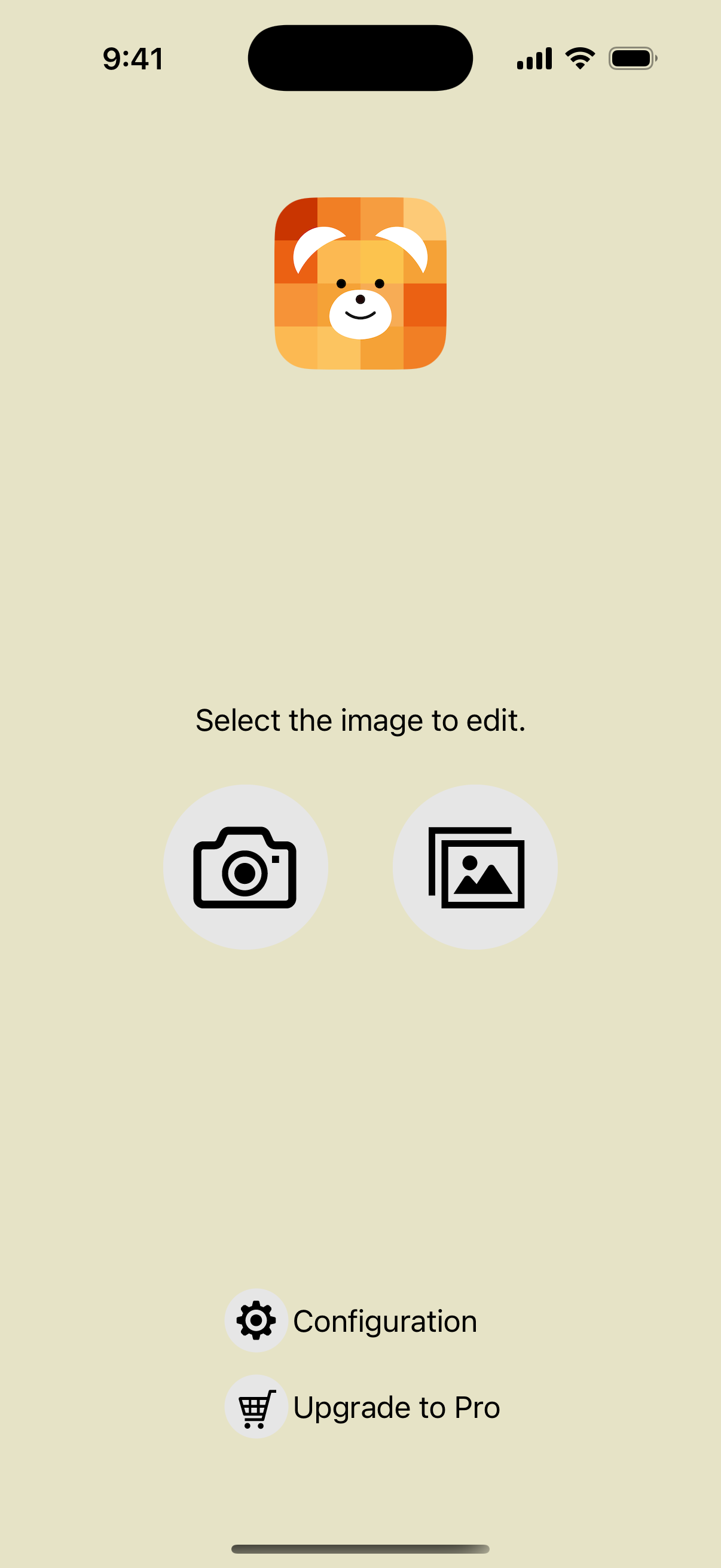
1Choose a photo from your library
Tap the photo button on the start screen to choose an image. To take a new photo, use the camera button.
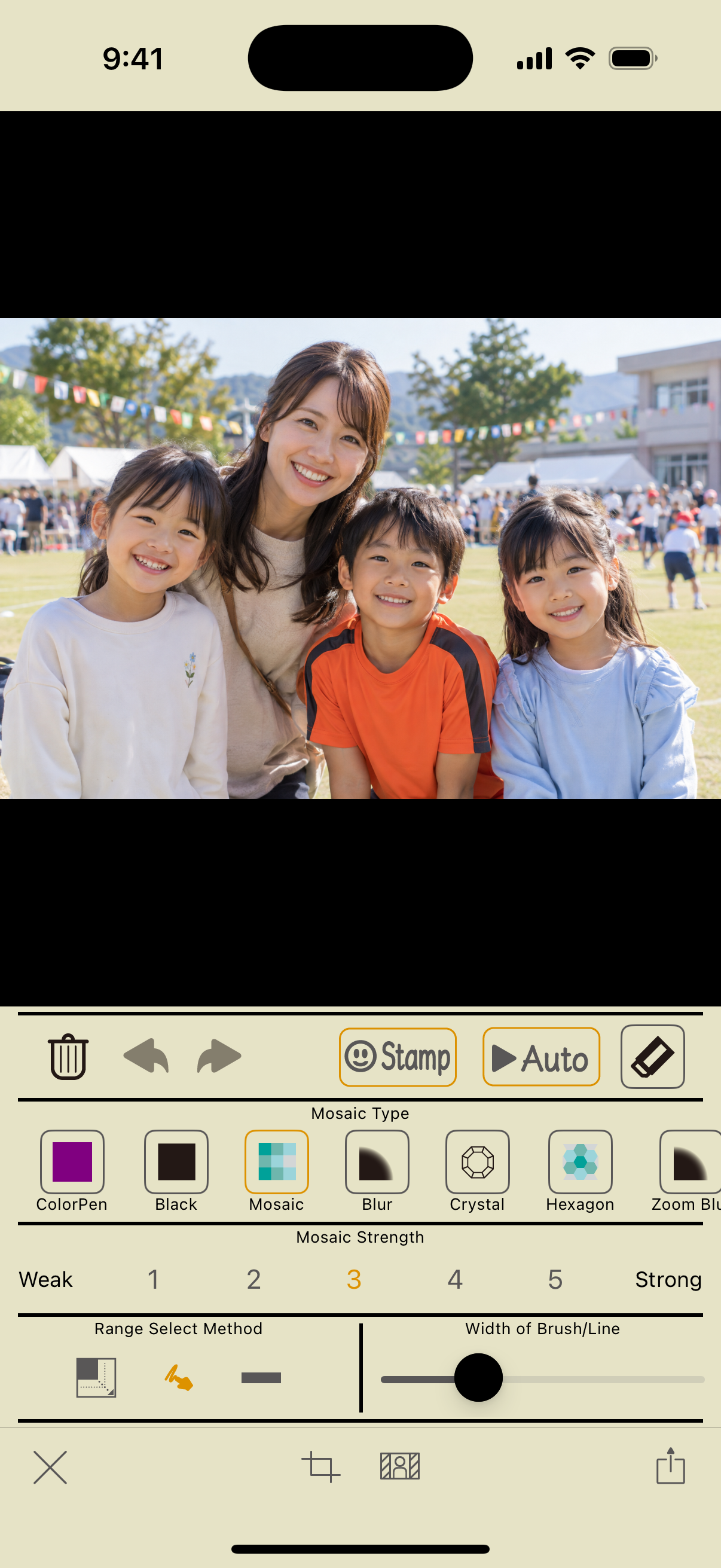
2Choose an effect in the editor
Choose mosaic or blur under “Mosaic Type” at the bottom. Scroll horizontally to see the other effects.
Below the effects are “Mosaic Strength,” the selection tools, and “Width of Brush/Line.”
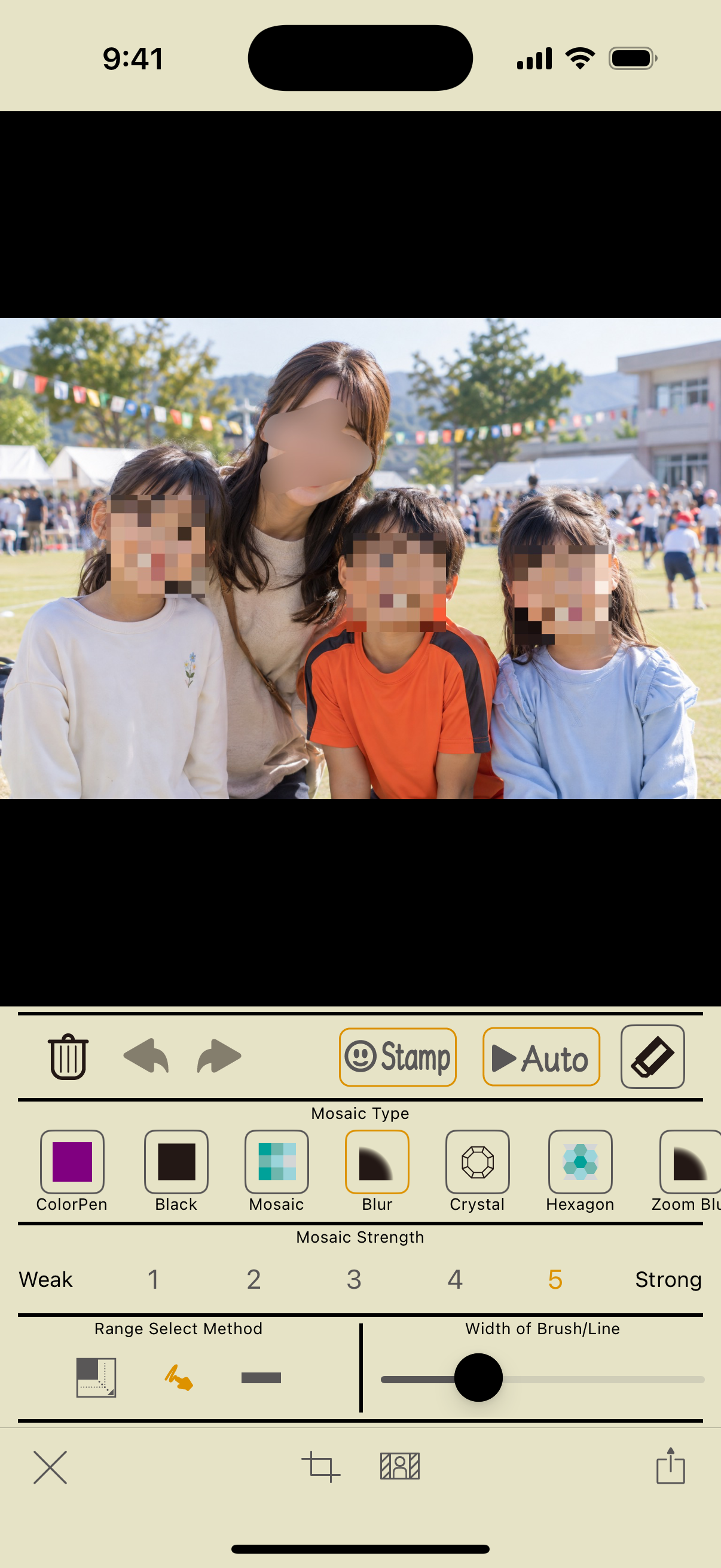
3Draw over the area you want to hide
Choose the brush tool and draw on the photo with one finger. Pinch out with two fingers to zoom in, and drag with two fingers to move the photo.
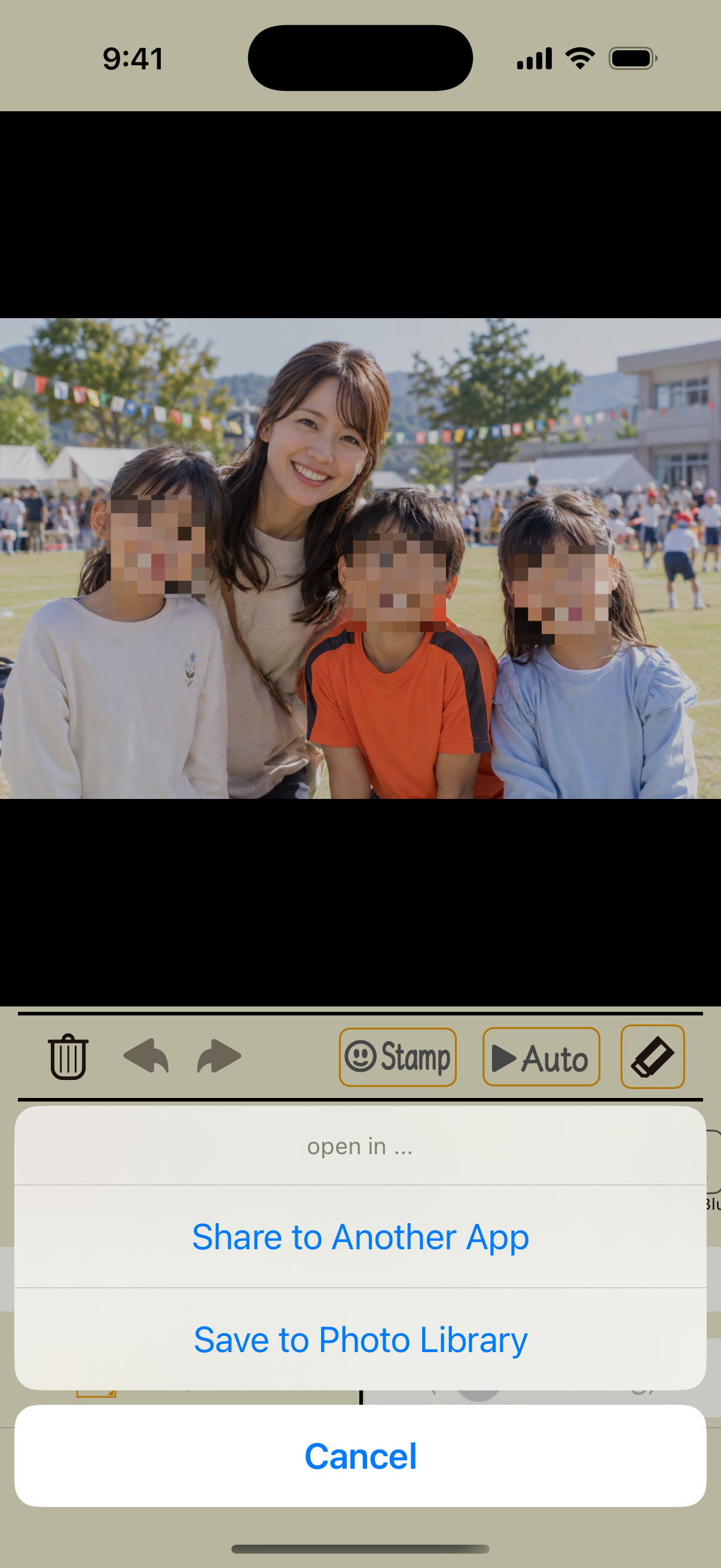
4Check the result and save
Check the whole photo, then tap the share button at the lower right and choose “Save to Photo Library.” You are done when the saved confirmation appears.
Other ways to open a photo
Take a photo with the camera
You can take a photo using the camera button on the start screen. Camera permission is required the first time.
Share from Photos or another app
If Instant Blur appears in an image's share menu, selecting it opens the image in the editor. The available destinations depend on the image and the app's state.
Screenshots: app 2.5 on iOS 18.2. Steps checked on October 11, 2026. Appearance may vary with the app or OS version.