
Save and share your photo
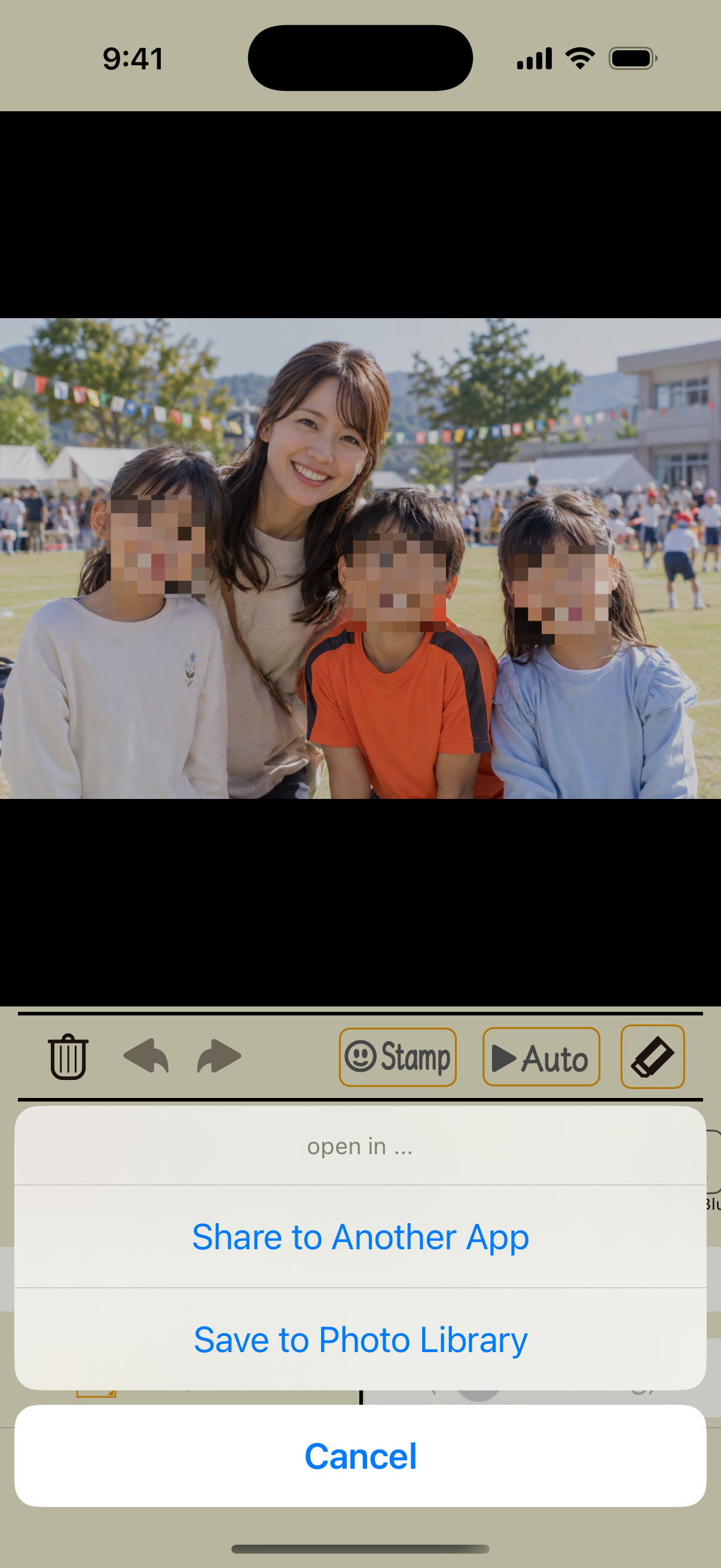
1Save from the share button
Tap the share button at the lower right of the editor and choose “Save to Photo Library.” Check the whole photo before saving.
Choose “Share to Another App” to select a destination from the iOS share sheet.
Crop an image
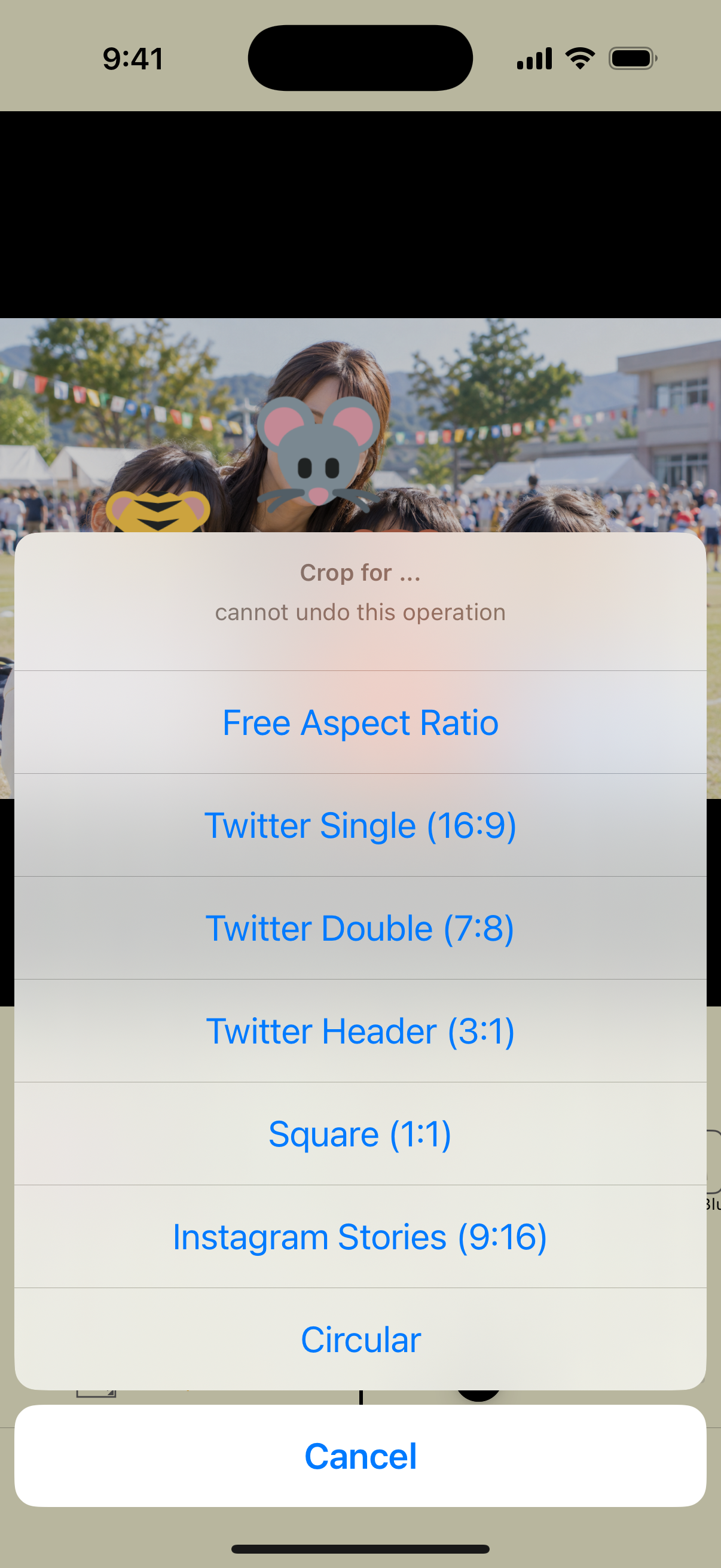
Cropping cannot be reversed with the normal undo button. Save your edited photo first if needed.
2Choose the crop tool and aspect ratio
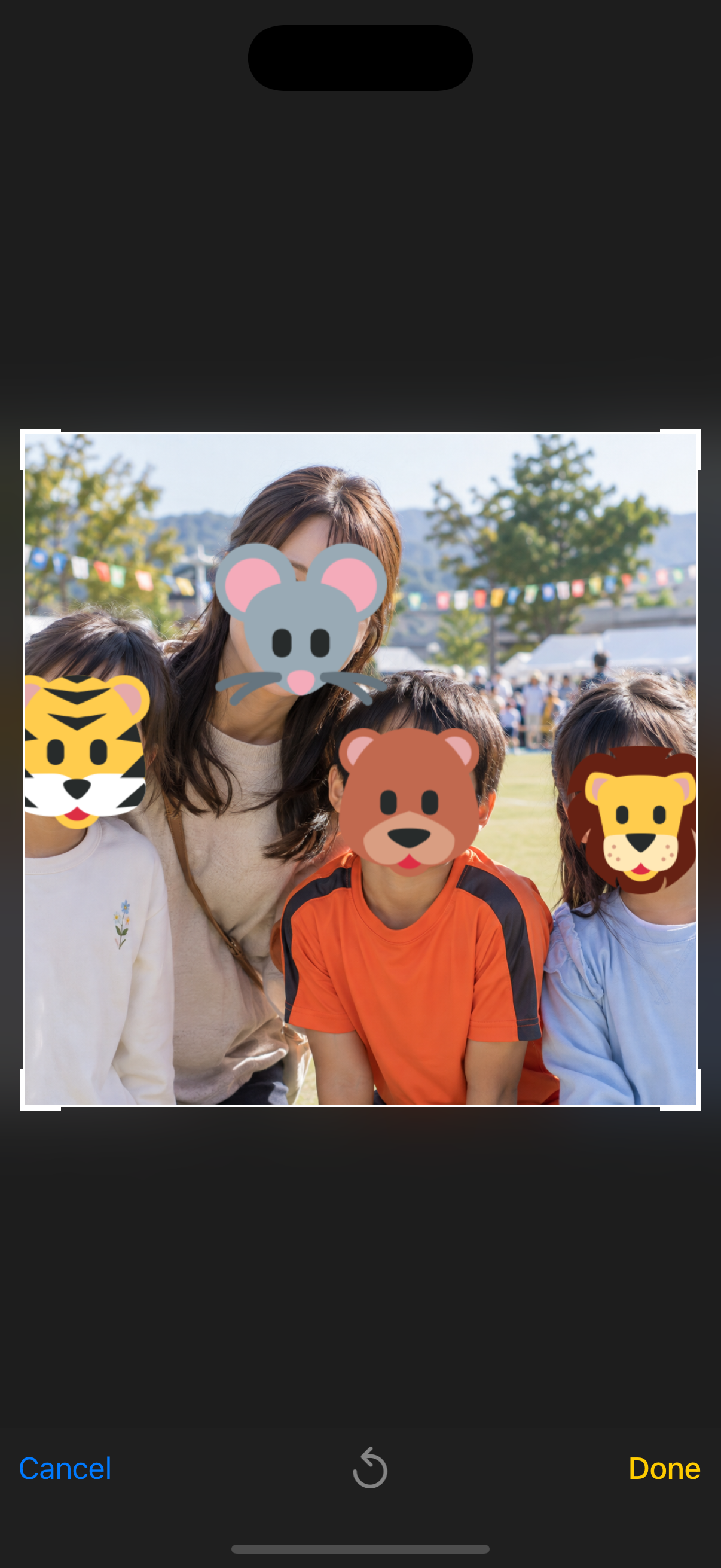
Tap the crop button at the bottom, then choose a freeform, square, portrait, circular, or other crop. Adjust the position and confirm in the crop screen.
Available aspect ratios include 16:9, 7:8, 3:1, 1:1, and 9:16. Some menus in the app still use the name Twitter.
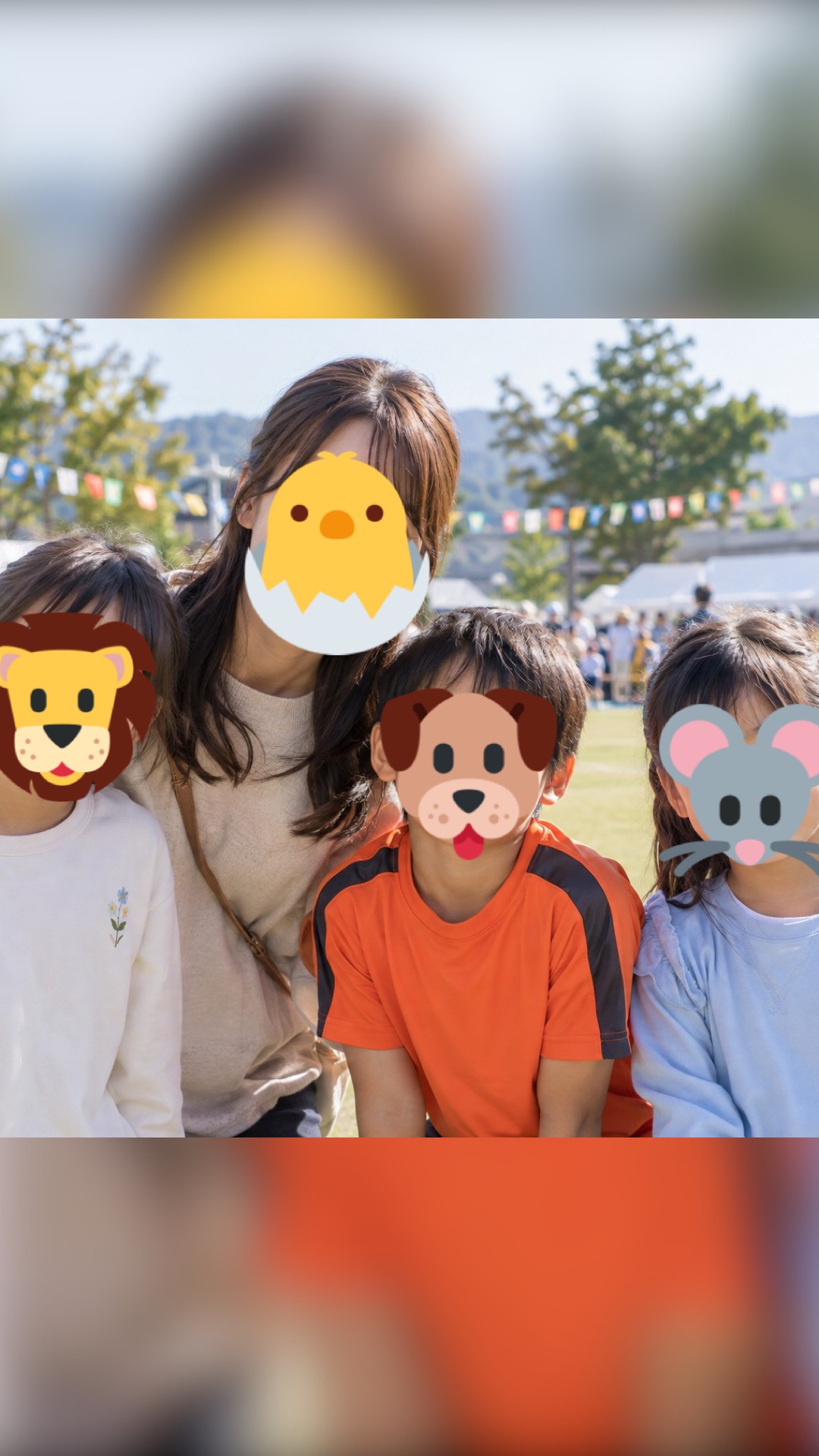
Fit the whole photo in a blurred frame
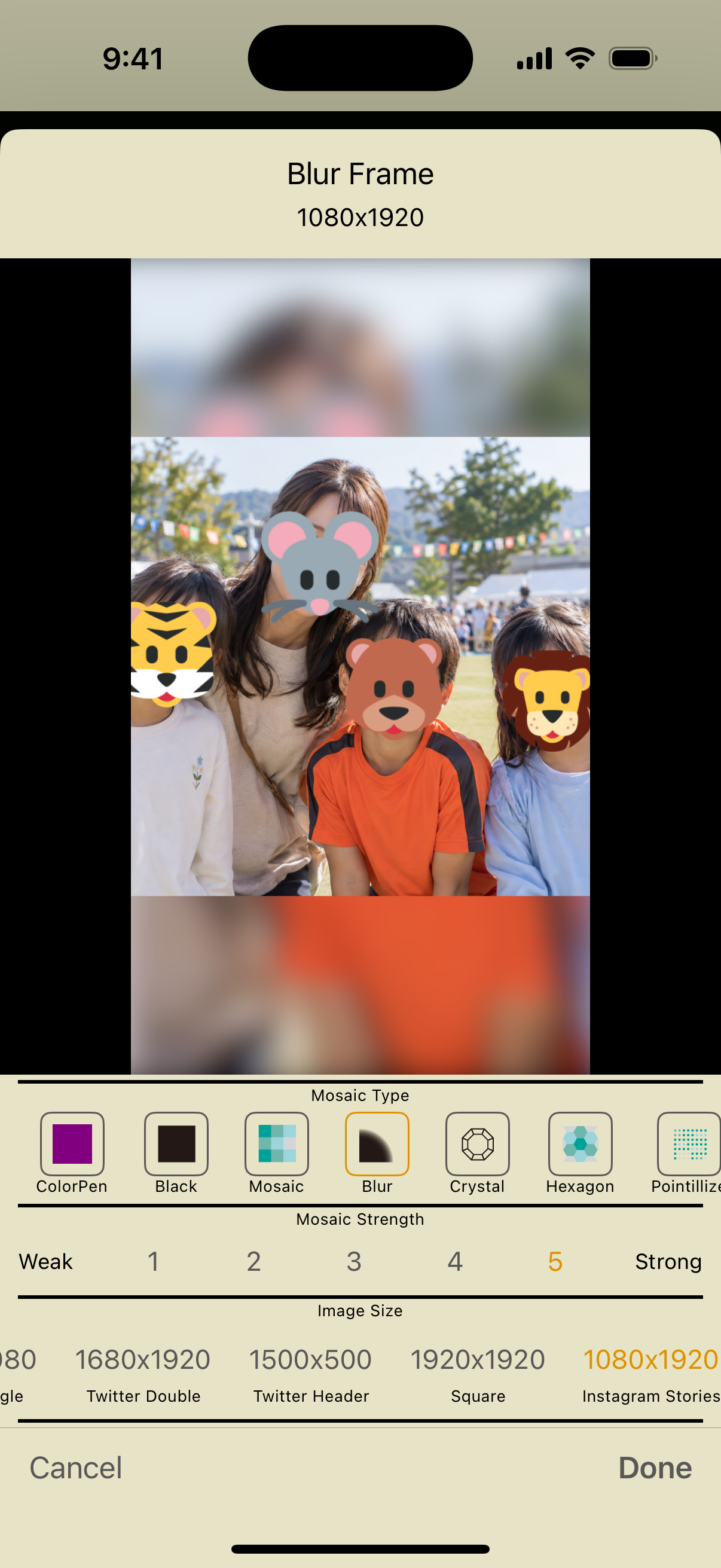
3Choose a frame and output size
Tap the blurred frame button. Choose the surrounding effect, strength, and output size, then tap the checkmark at the lower right.
The photo stays centered while an edited version fills the surrounding area, letting you change the aspect ratio without cropping the subject.
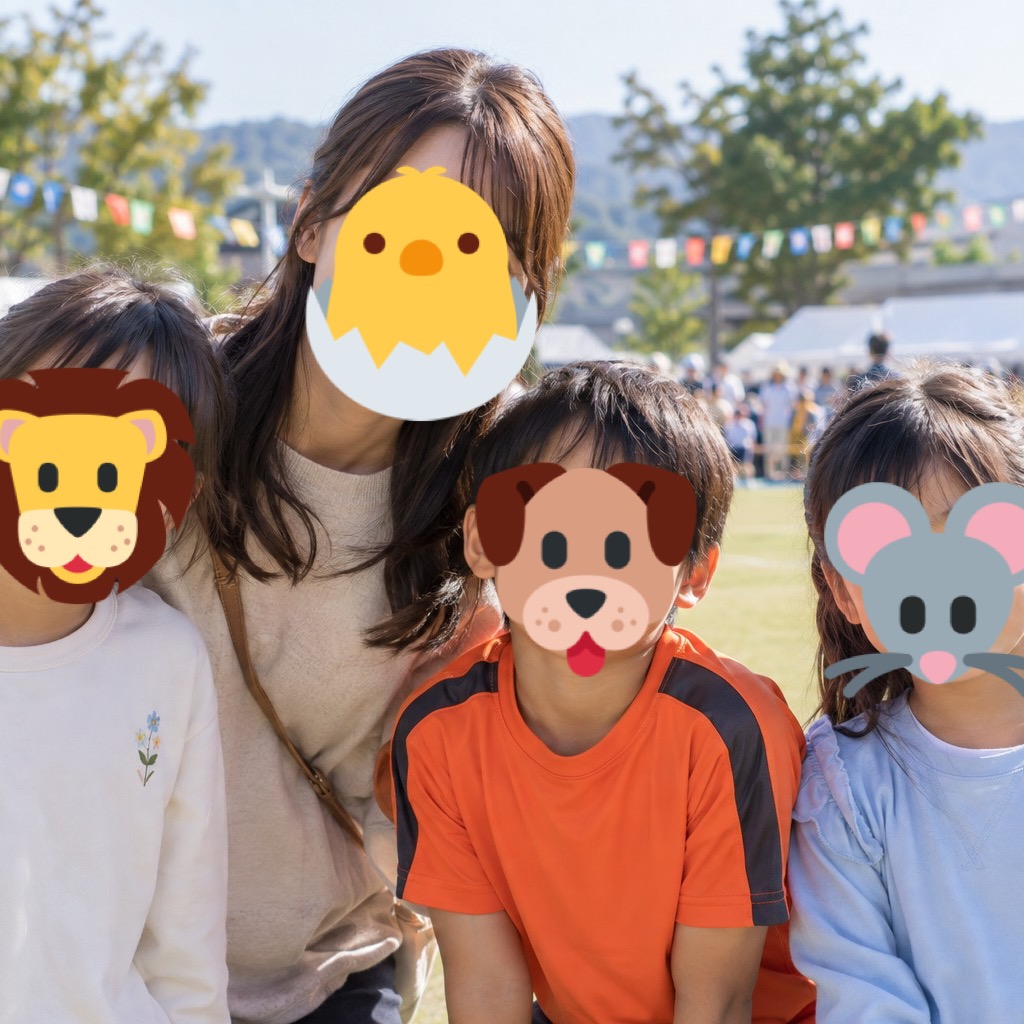
Resized results
Access to additional features
Pro includes cropping and blurred frames. In the free version, you can unlock them temporarily by watching a video ad. Completing the video unlocks them for 24 hours. The offer shown may vary depending on ad availability.
Pro also removes ads. Check the purchase screen in the app for prices and free trial eligibility.
If you cannot save
Check the app's Photos permission in your iPhone settings, then try saving again. Setting names can vary by OS version.
Screenshots: app 2.5 on iOS 18.2. Steps checked on October 11, 2026. Appearance may vary with the app or OS version.