
Choose among three selection tools
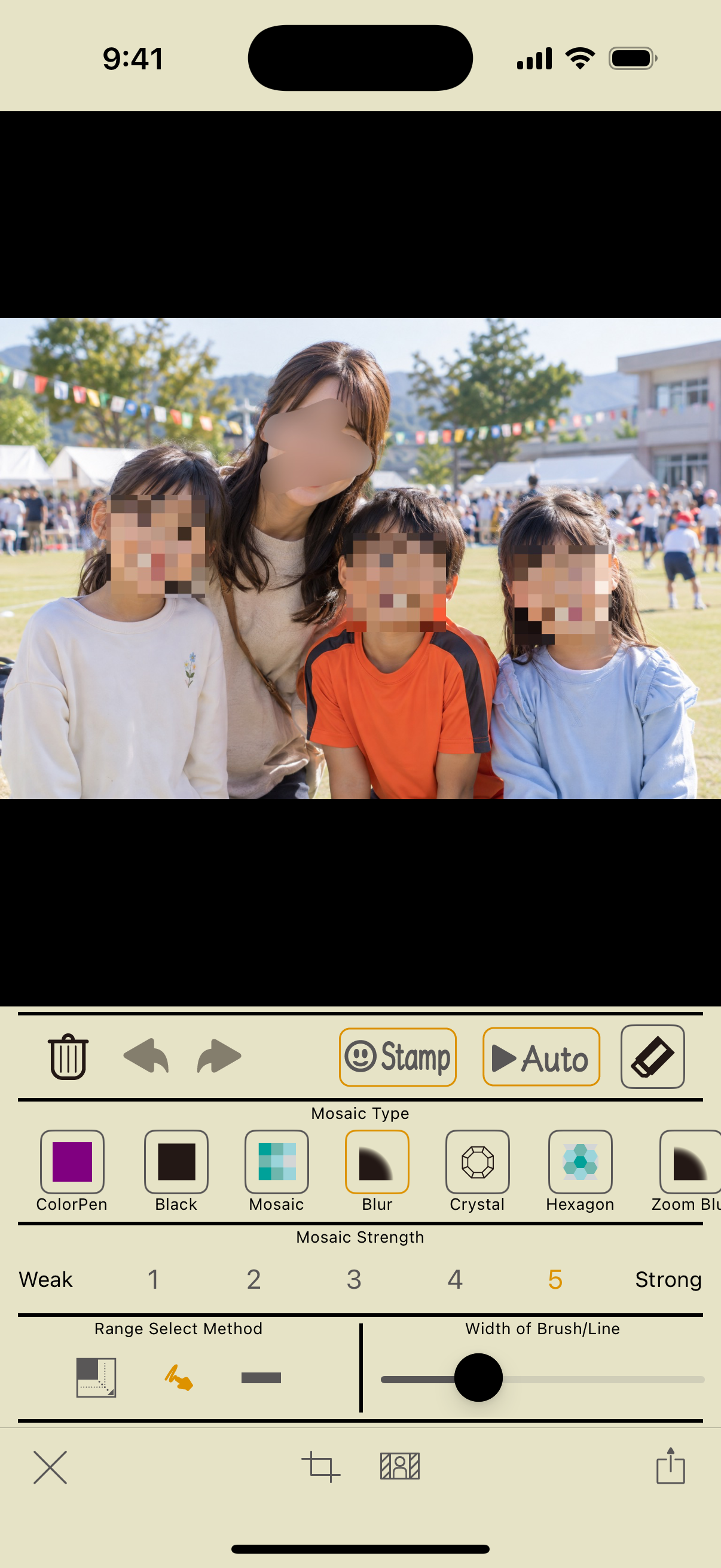
1Brush: draw with your finger
Choose an effect, then tap the brush tool. Draw with one finger to apply the effect. Adjust its width with the “Width of Brush/Line” slider.
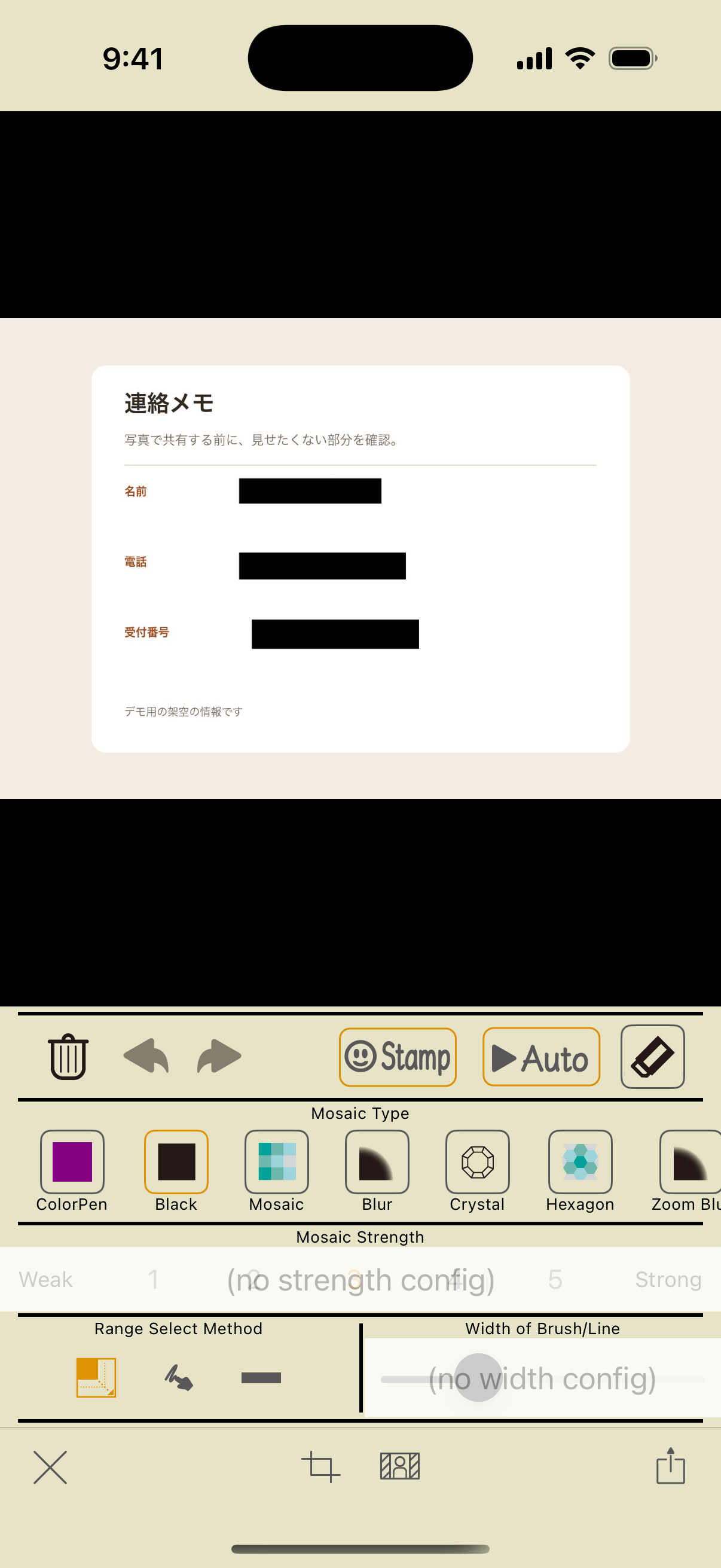
2Rectangle: cover a larger area
Choose the rectangle tool and drag from one corner to the other. Use it to cover text or larger areas. The line width setting does not apply to rectangles.
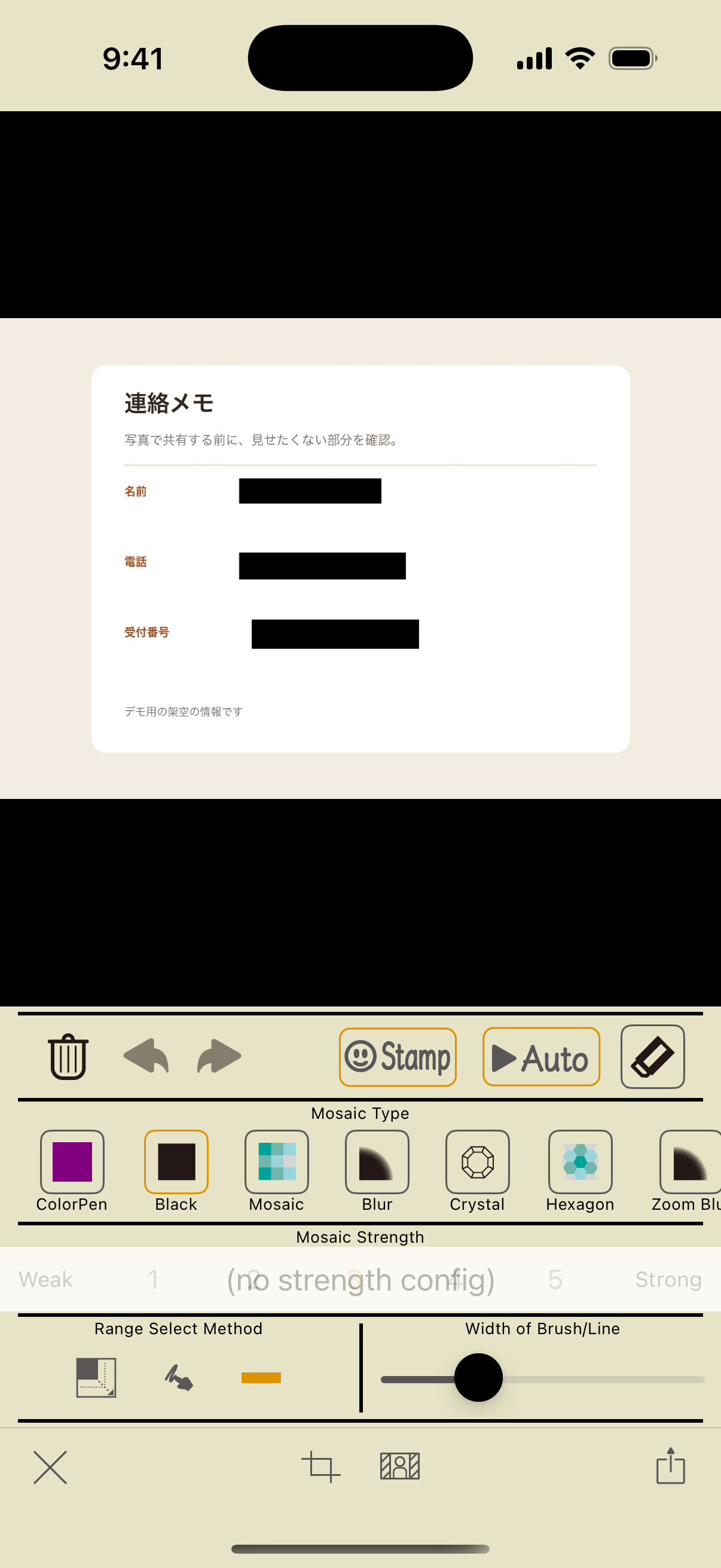
3Line: draw a covering strip
Choose the line tool and drag from the start point to the end point. Adjust its width with “Width of Brush/Line.” Combine it with black fill for a solid covering strip.
Adjust the effect, strength, and width
Supported effects, such as mosaic, blur, and crystal, have strength levels from 1 to 5. Black fill, color pen, manga, and sketch do not have a strength setting. With the color pen, you can choose a color to paint with.
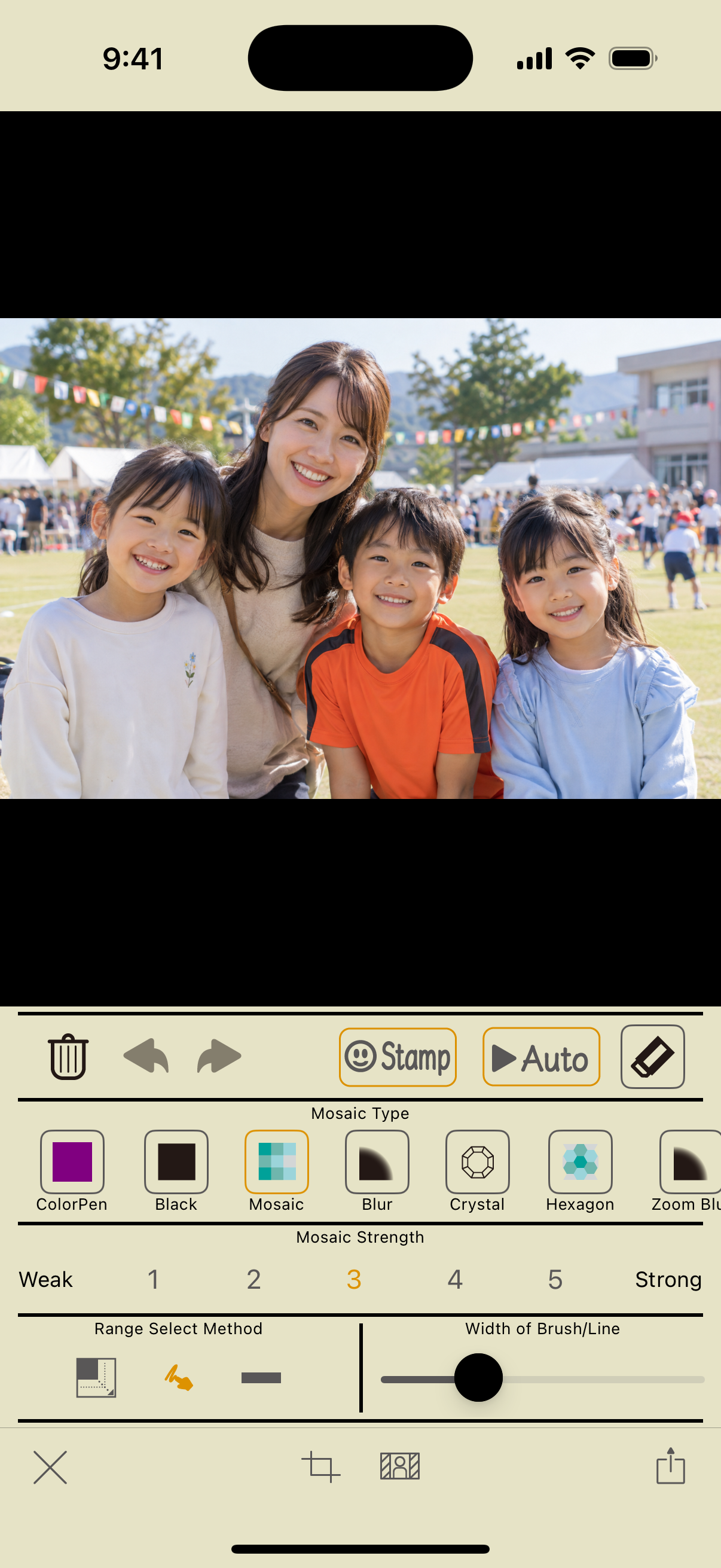
New settings apply to your next edit. To change an effect already applied, use undo or the eraser as needed, then apply it again.
Zoom, erase, and undo
- Pinch out with two fingers to zoom in.
- Pinch in with two fingers to zoom out.
- Drag with two fingers to move the photo.
- Use the eraser to restore an area to the original image for the current edit.
- The left arrow undoes an edit; the right arrow redoes it.
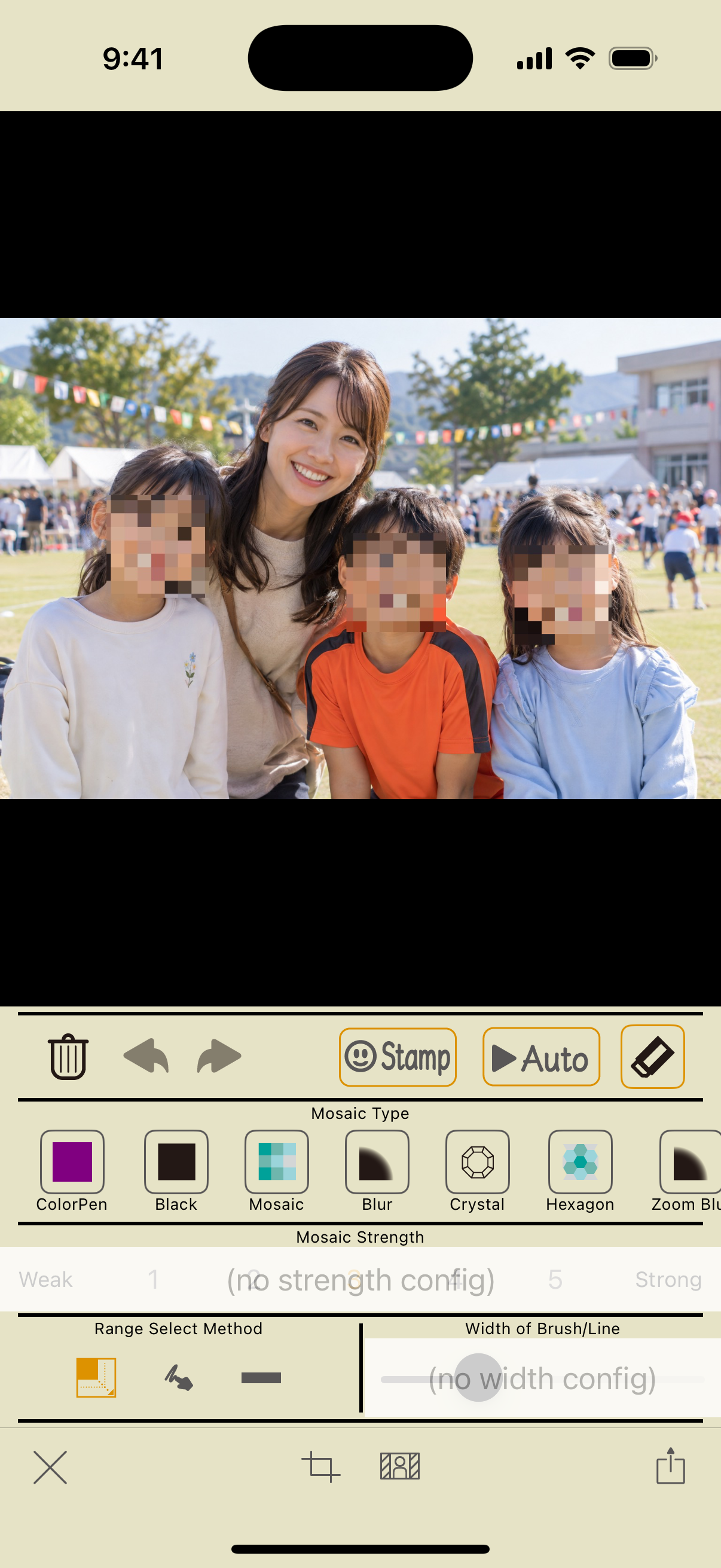
The default undo limit is five steps. Under “Undo History Max” in Configuration, you can choose three, five, or seven. Cropping cannot be reversed with the normal undo button.
Screenshots: app 2.5 on iOS 18.2. Steps checked on October 11, 2026. Appearance may vary with the app or OS version.