
Place emojis on faces automatically
1Open Stamp
Tap “Stamp” in the editor to open stamp editing. To add an emoji manually, choose one from the list at the bottom.
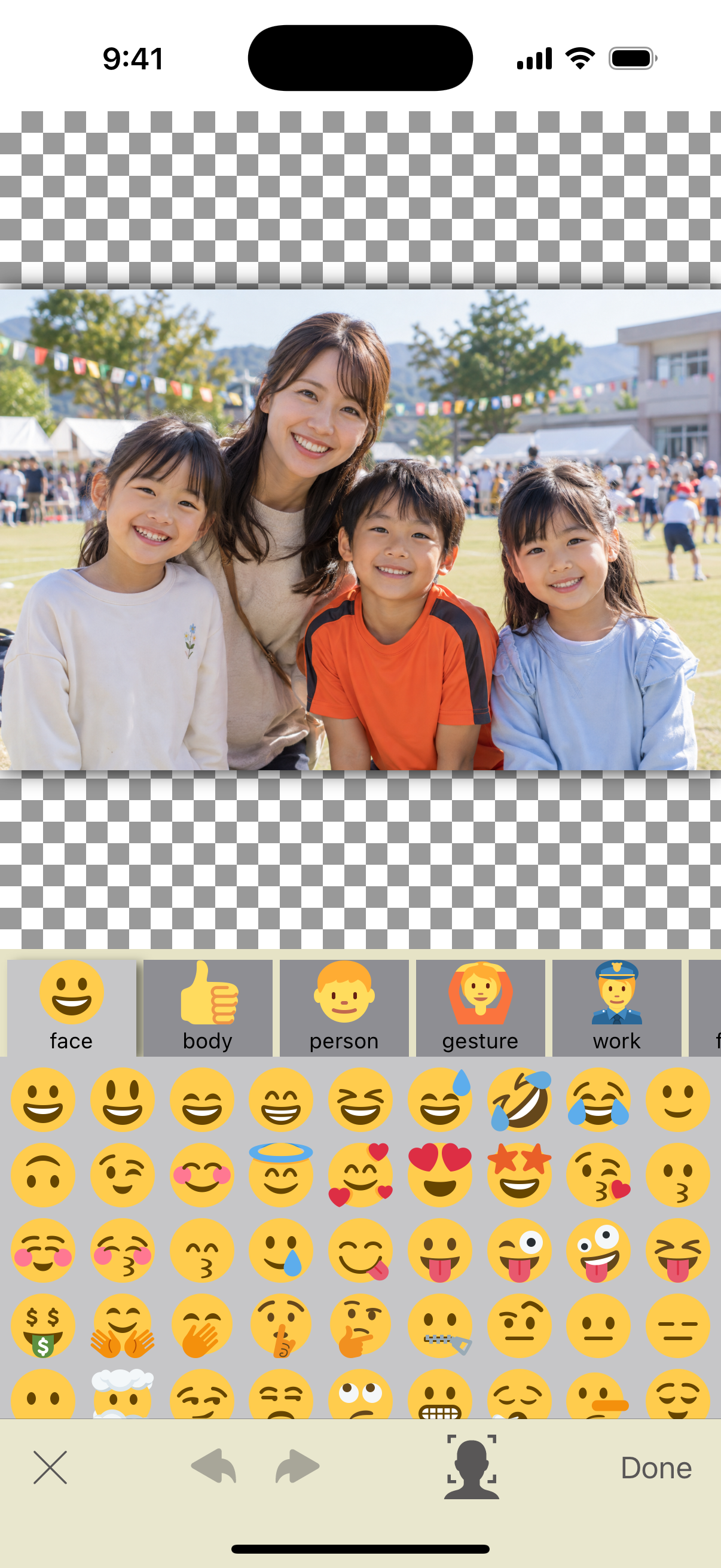
2Choose a type with the face silhouette button
Tap the face silhouette button near the bottom of the stamp editor, then choose face or animal emojis. Emojis are placed on detected faces automatically.
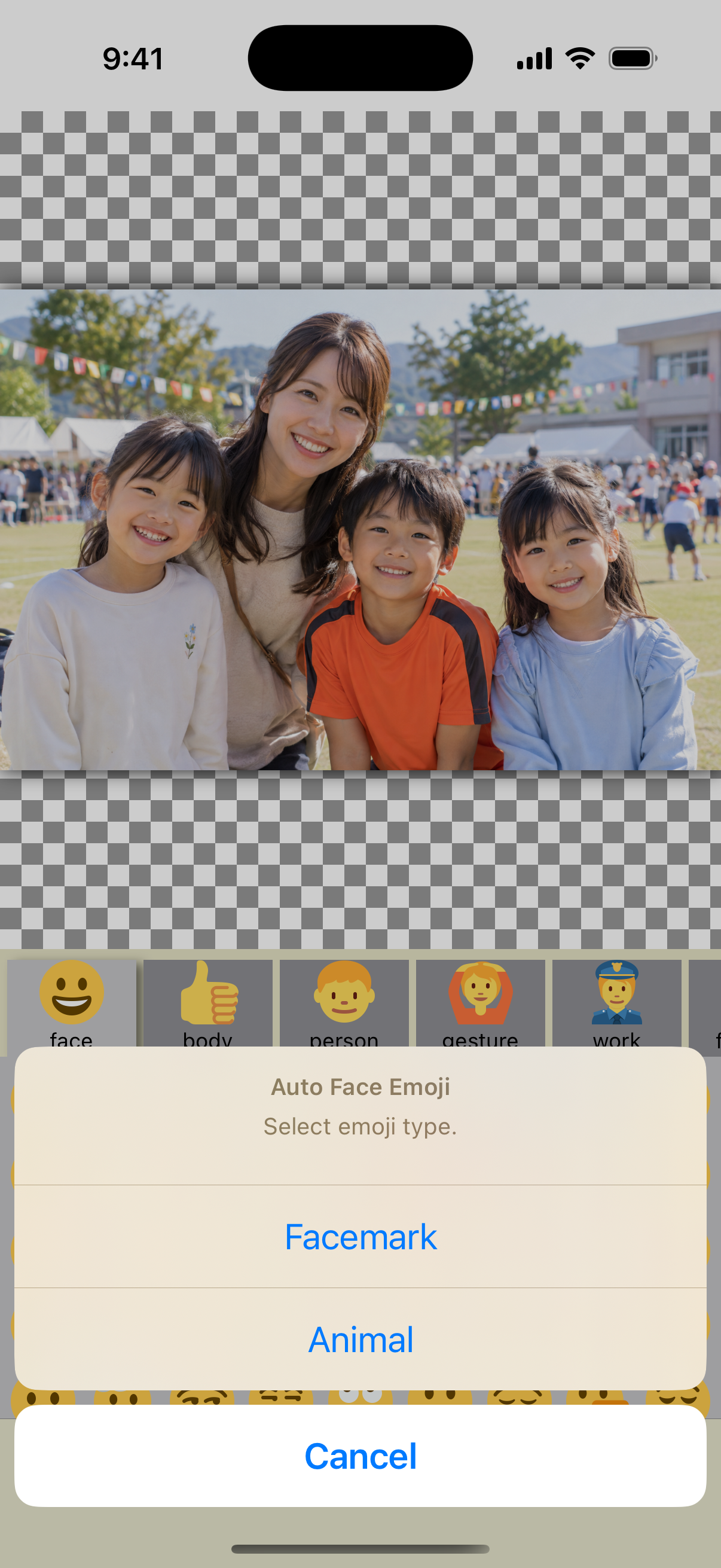
3Adjust the position and size
Select a stamp and drag it to move it. Use the handle at the lower right to resize or rotate it. You can also flip or delete the stamp.
Check the stamp size to make sure the edges of the face are covered.
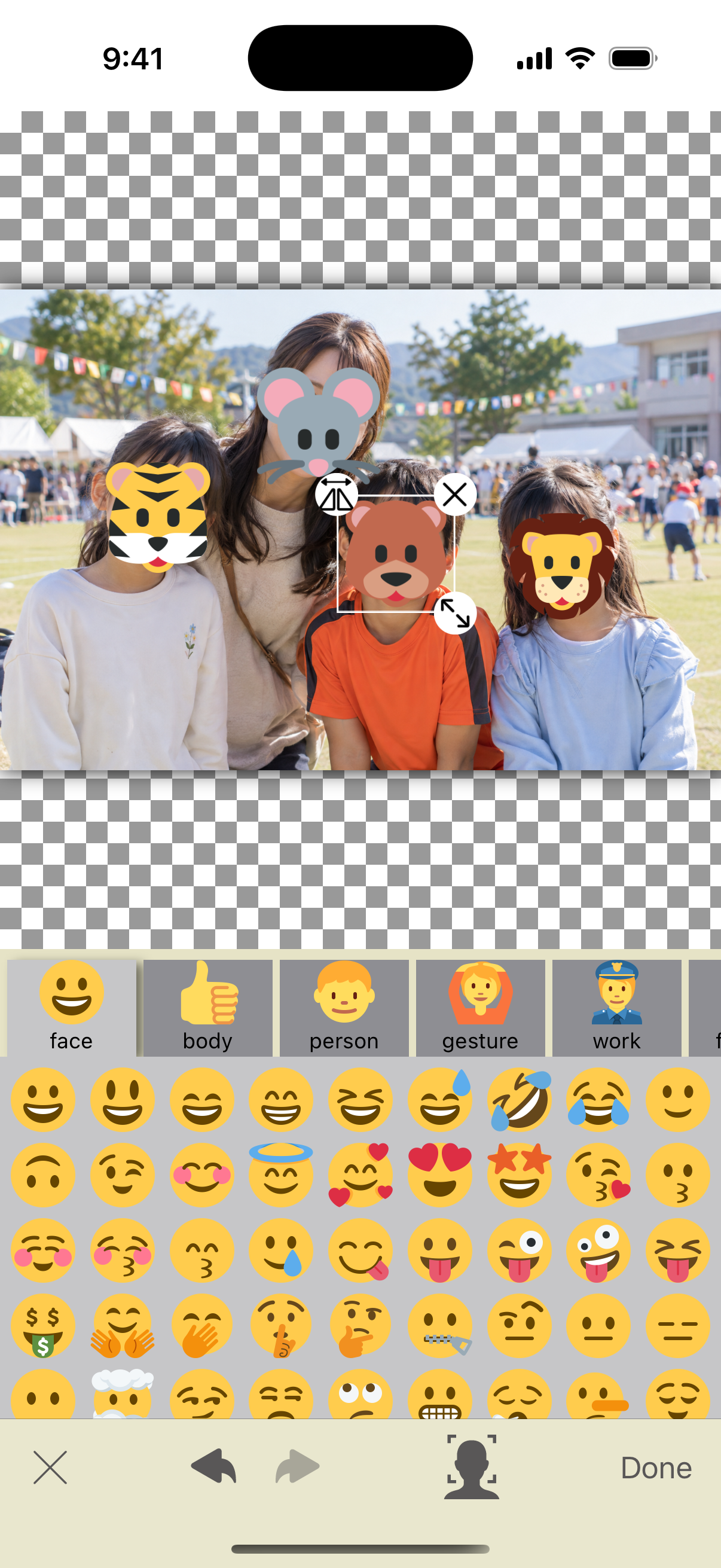
4Confirm and save
Tap the checkmark at the lower right of the stamp editor to return to the main editor. Check the final result, then save your photo.
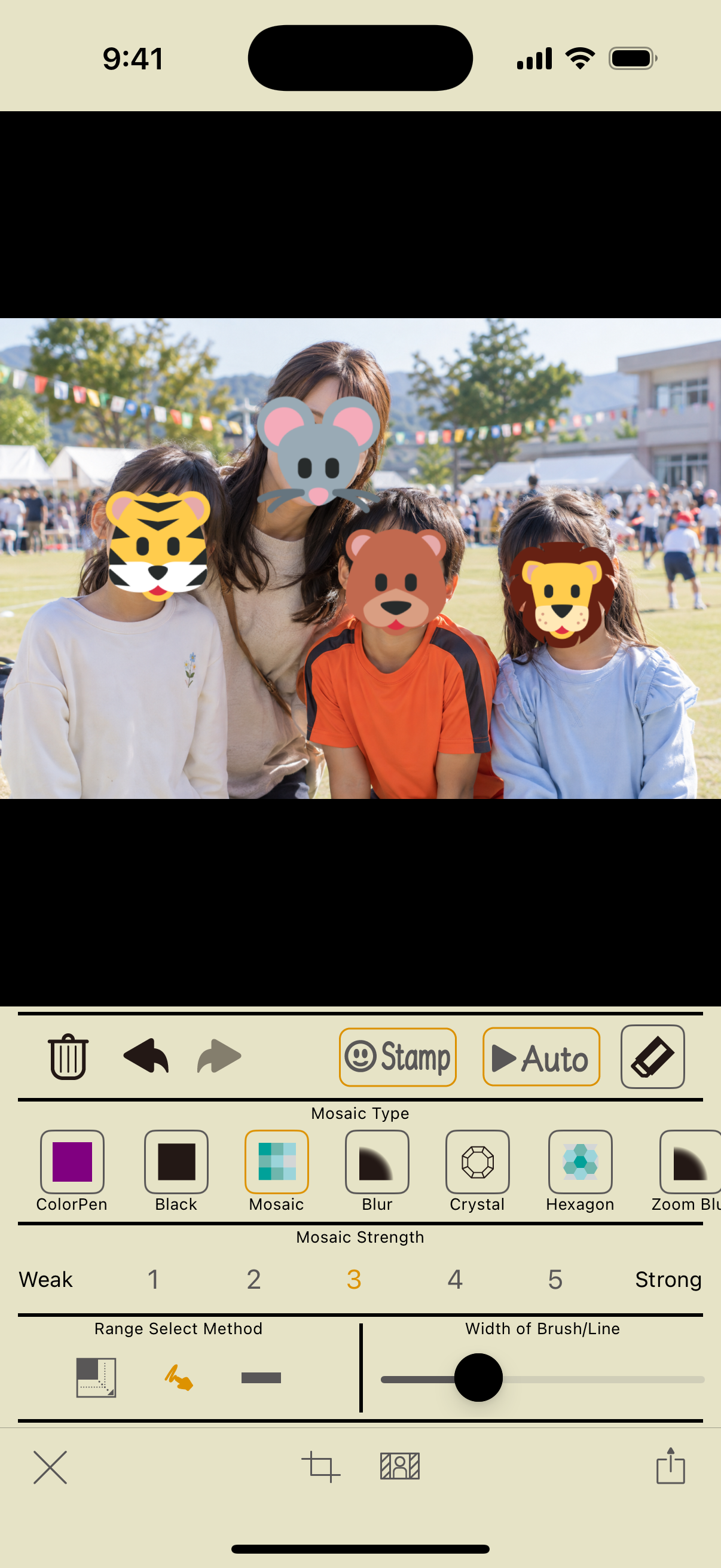


Add any emoji manually
Choose an emoji from the list at the bottom, then move the added stamp over the area you want to hide. Adjust its size and angle to suit the photo. Undo and redo are available while editing stamps.
Screenshots: app 2.5 on iOS 18.2. Steps checked on October 11, 2026. Appearance may vary with the app or OS version.