
Names and numbers.
Cover just what you need.
Before sharing a memo or screenshot, use the rectangle tool or color pen to cover selected areas.
Basic editing and saving are free. In-app purchases are available.
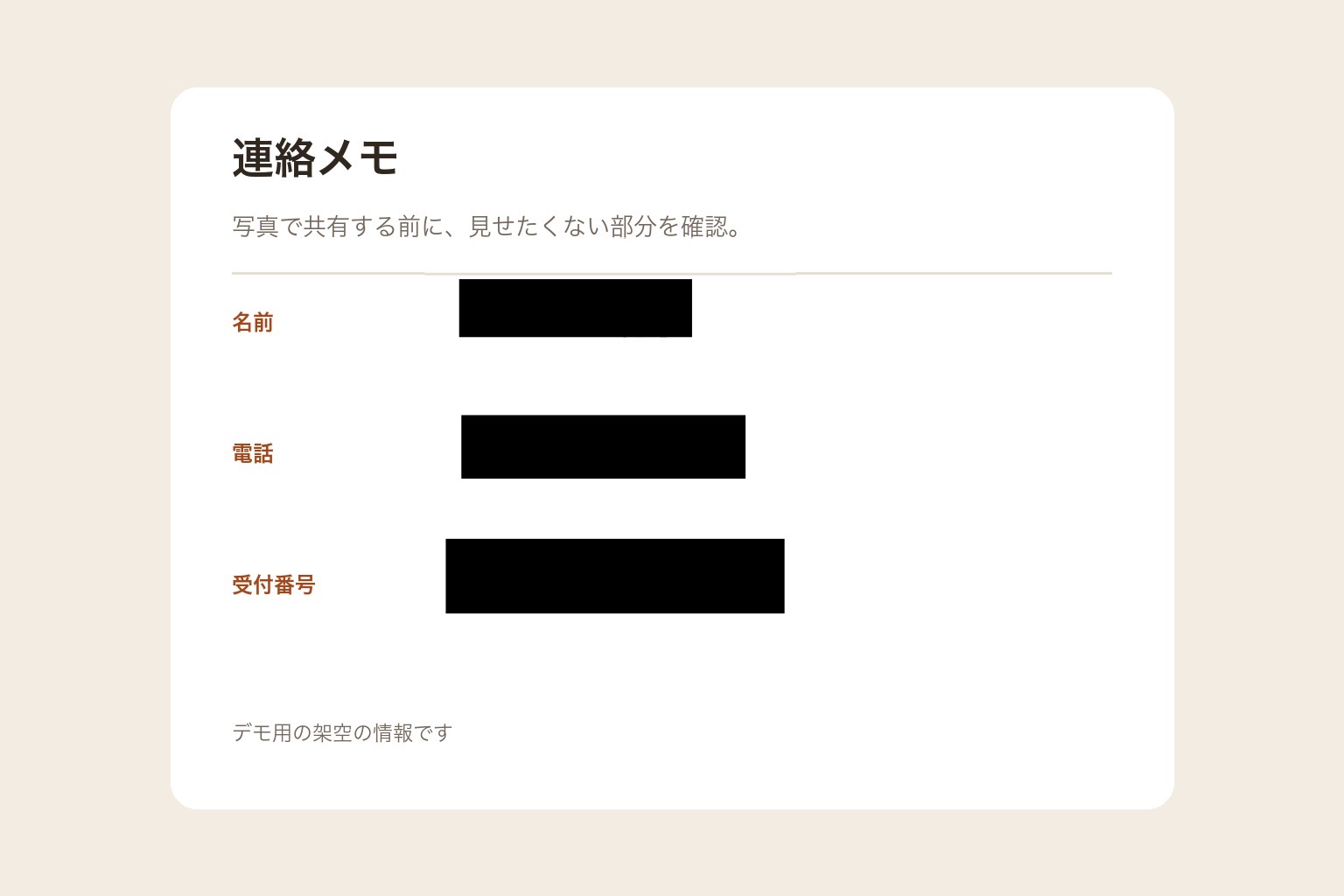
Select the area. Cover it all at once.
Combine the rectangle tool with black fill to cover names or numbers in one area. Zoom in on small text to check the coverage.
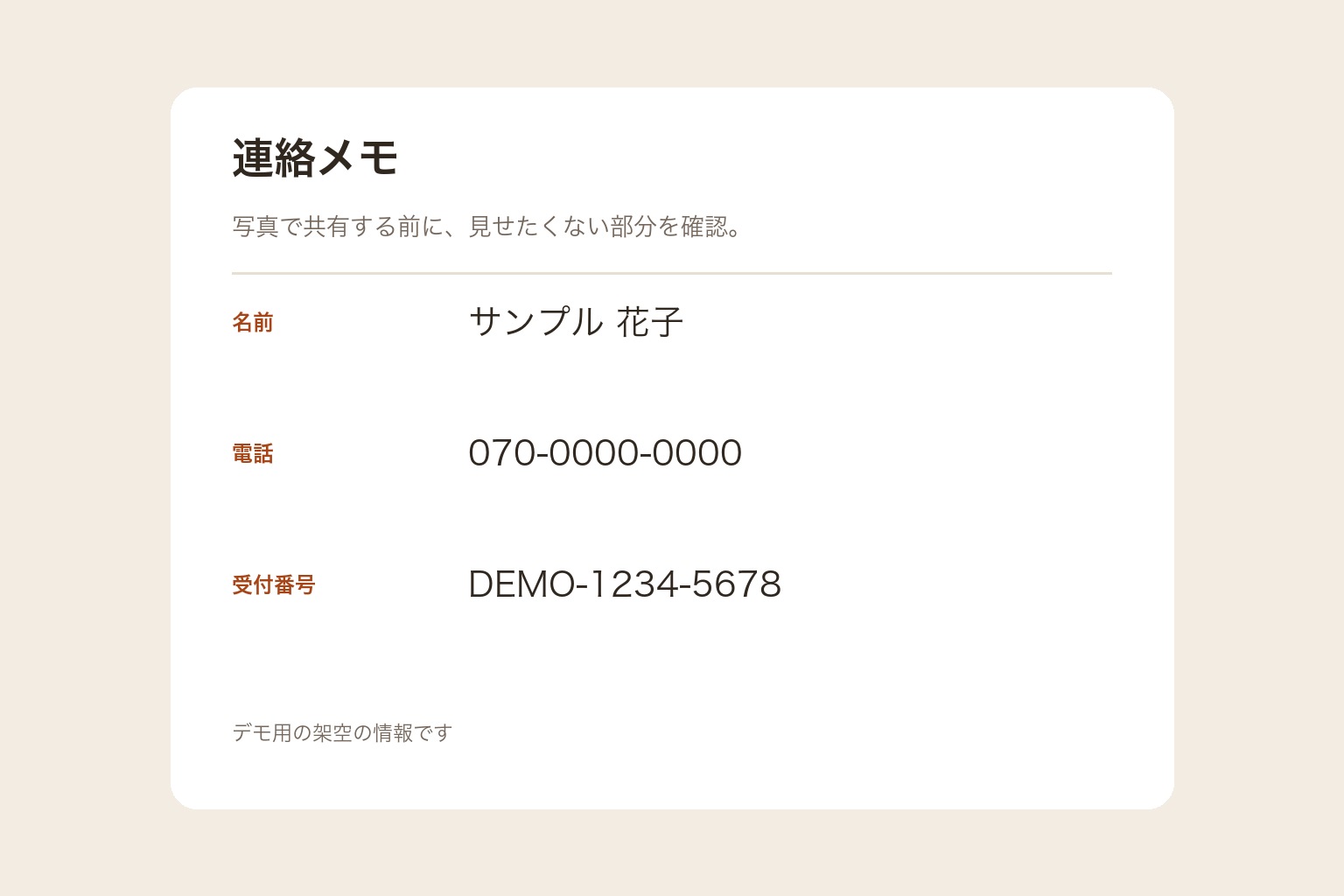
The demo photos are AI-generated, and the contact memo is fictional. The editing results were created in the actual app.
How to edit this photo.
Choose black fill
Open the image and choose black fill from the effects.
Select a rectangle
Drag from one corner of the area you want to hide to the other.
Check the whole image and save
Check the edges of the text and look for information left elsewhere.
See the controls as you learn.
Find button locations and detailed steps in the screenshot guides.
Read the full guide →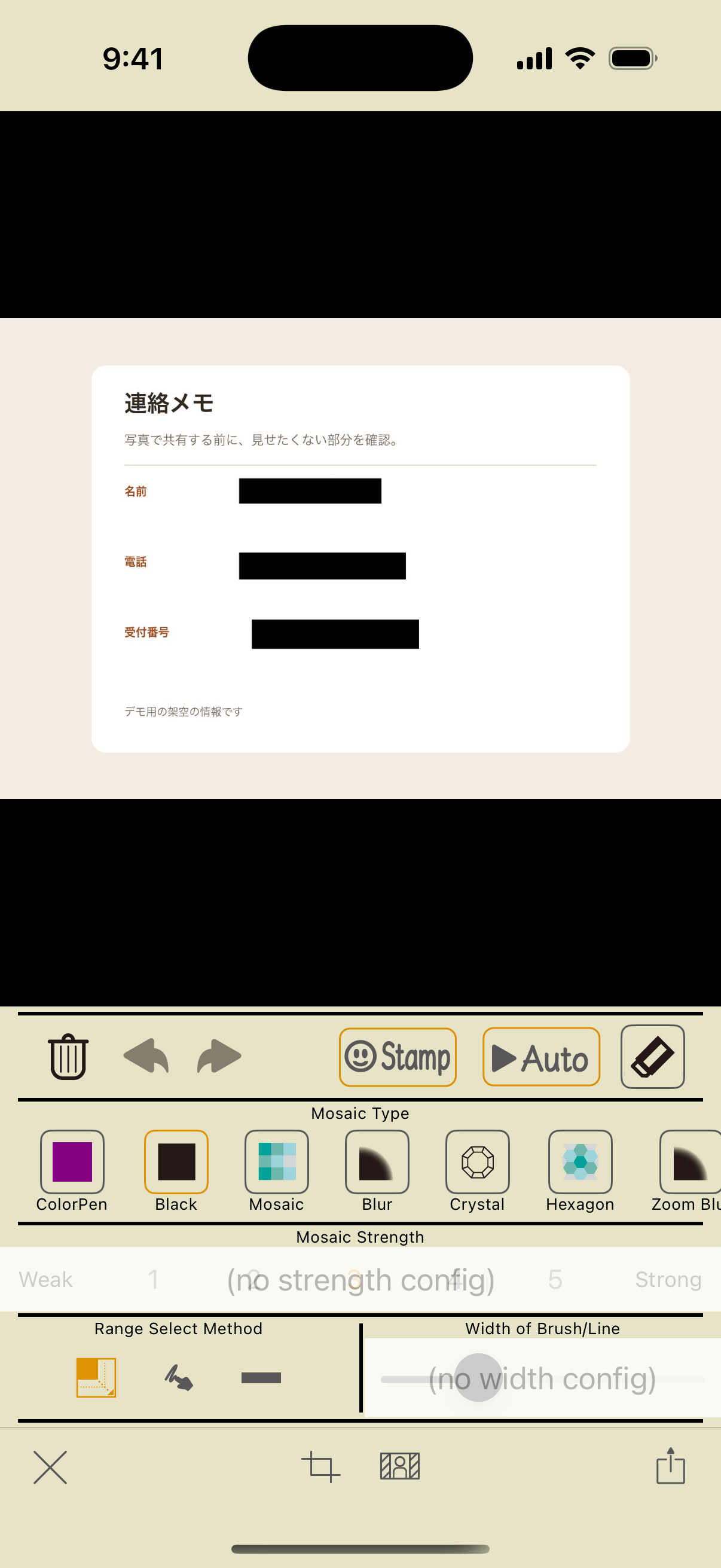
Automatic text editing helps detect text areas. It does not understand which information is personal or guarantee that all text is detected. The information in the sample is fictional.
Make the photos you share
feel like you.
Hide faces. Blur backgrounds.
Instant Blur makes it easy to prepare a photo before you post.
Basic photo editing and saving are free. In-app purchases are available.